Usage
Everything in this section assumes you’ve enabled projectile-mode.
|
Basic usage
Just open some file in a version-controlled (e.g. git) or a project
(e.g. maven) directory that’s recognized by Projectile and you’re
ready for action. Projectile happens to recognize out of the box every common
VCS and many popular project types for various programming languages.
You can learn more about Projectile’s notion of a project here.
The extent of the support for every VCS differs and Git is the best supported
one. Projectile supports some advanced features like working with Git submodules
and using git-grep instead of GNU grep.
|
You need to know only a handful of Projectile commands to start benefiting from it.
The examples below (and throughout this manual) use the s-p prefix.
Projectile ships no default prefix key, so you need to bind one yourself as
shown in Basic configuration.
|
-
Find file in current project (s-p f)
-
Switch project (s-p p) (you can also switch between open projects with s-p q, or jump back to the previously active project with
projectile-switch-to-most-recent-project) -
Grep (search for text/regexp) in project (s-p s g)
-
Replace in project (s-p r)
-
Find references in project (s-p ? or s-p s x)
-
Invoke any Projectile command via the Projectile dispatch menu (s-p m)
-
Toggle between implementation and test (s-p t)
-
Find another file with the same base name but a different extension, e.g.
foo.h<→foo.c(s-p a) -
Find a project file of a given kind, or jump between related files of a project type (e.g. a Rails model and its controller) (s-p j / s-p J)
-
Run a shell command in the root of the project (s-p ! for a sync command and s-p & for an async command)
-
Run various pre-defined project commands like:
-
build/compile project (s-p c c)
-
test project (s-p c t)
-
install project (s-p c i)
-
package project (s-p c p)
-
run project (s-p c r)
-
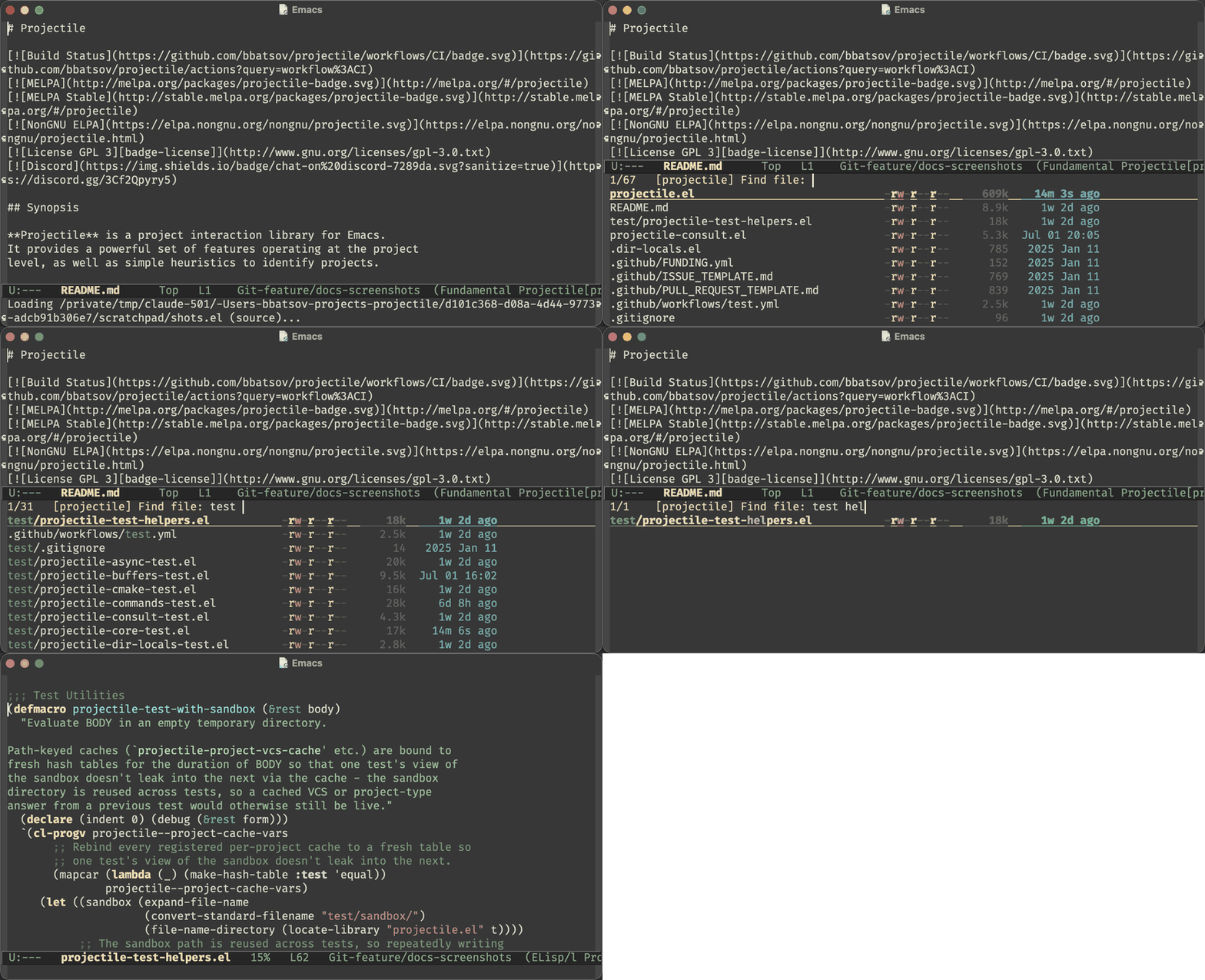
Here’s projectile-find-file (s-p f) in action, narrowing the project’s
files down with a few keystrokes (shown with vertico and marginalia, which
Projectile’s completion categories integrate with nicely):
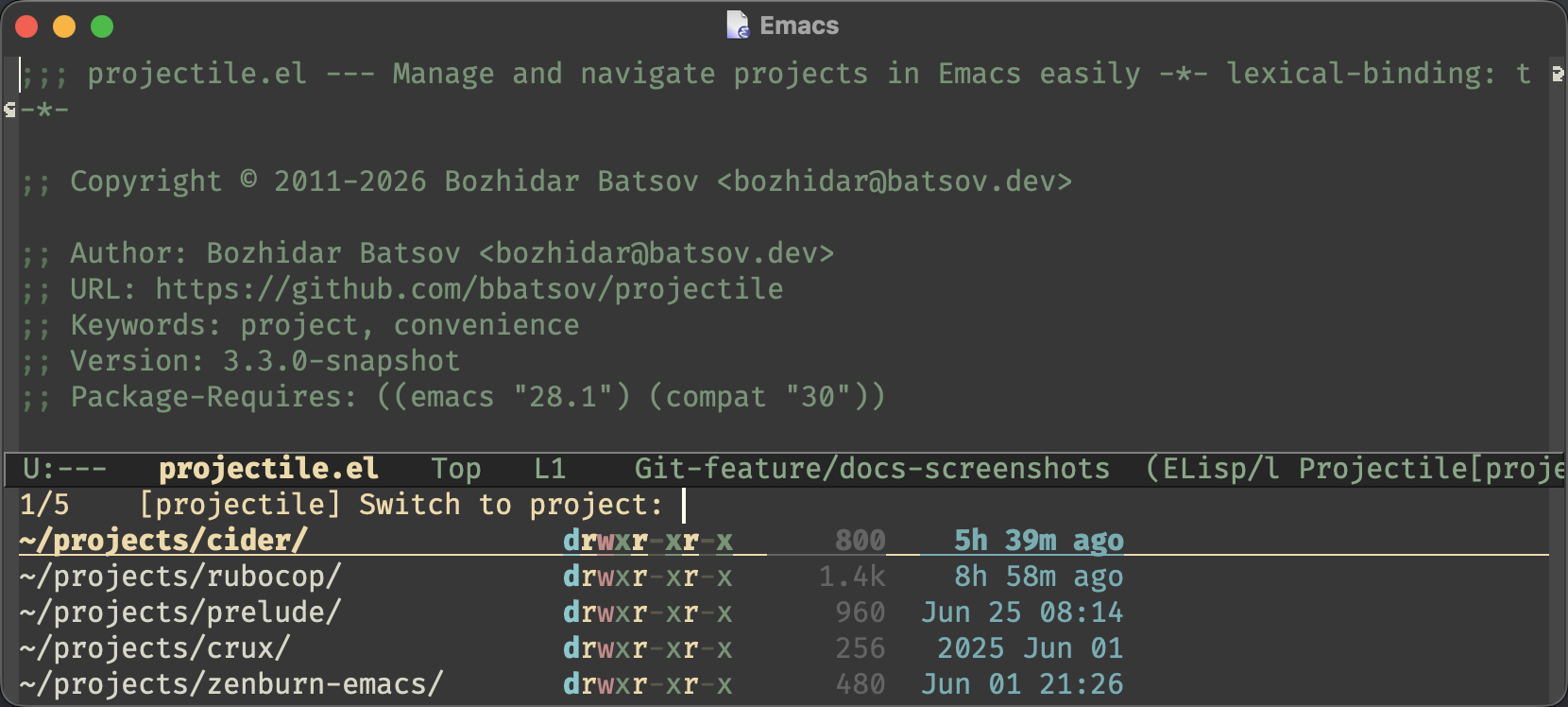
And this is what switching projects (s-p p) looks like:
There are many more commands, covered in the sections below, but the basics can get you pretty far.
Basic setup
In this section we’ll cover the bare minimum of setup you might want to do. Projectile works fine with no setup, but if you tweak the configuration a bit you’ll get more out of it.
Check out the "Configuration" section of the manual for a lot more information about configuring Projectile.
Basic configuration
Here’s how a typical Projectile configuration would look:
;; Optional: ag is nice alternative to using grep with Projectile
(use-package ag
  :ensure t)

;; Optional: Enable vertico as the selection framework to use with Projectile
(use-package vertico
  :ensure t
  :init
  (vertico-mode +1))

;; Optional: marginalia annotates the completion candidates - file sizes and
;; modification times at `projectile-find-file', major modes at
;; `projectile-switch-to-buffer', and so on.
(use-package marginalia
  :ensure t
  :init
  (marginalia-mode +1))

;; Optional: which-key will show you options for partially completed keybindings
;; It's extremely useful for packages with many keybindings like Projectile.
(use-package which-key
  :ensure t
  :config
  (which-key-mode +1))

(use-package projectile
  :ensure t
  :init
  (setq projectile-project-search-path '("~/projects/" "~/work/" "~/playground"))
  :config
  ;; I typically use this keymap prefix on macOS
  (define-key projectile-mode-map (kbd "s-p") 'projectile-command-map)
  ;; On Linux, however, I usually go with another one
  (define-key projectile-mode-map (kbd "C-c C-p") 'projectile-command-map)
  (global-set-key (kbd "C-c p") 'projectile-command-map)
  (projectile-mode +1))
The example above builds upon the simpler setup demonstrated in the "Installation" section.
Automated project discovery
To add a project to Projectile’s list of known projects, open a file
in the project. If you have a projects directory, you can tell
Projectile about all of the projects in it with the command M-x
projectile-discover-projects-in-directory.
You can go one step further and set a list of folders which Projectile is automatically going to check for projects on startup.
Recursive discovery is configured by specifying the search depth in a cons cell:
(setq projectile-project-search-path '("~/projects/" "~/work/" ("~/github" . 1)))Automatic discovery is controlled by projectile-auto-discover, which
is enabled by default. The search path is scanned the first time a
project-switching command runs in an Emacs session (not on every switch),
so pointing projectile-project-search-path at your projects directory
is all you need. To turn the automatic scan off:
(setq projectile-auto-discover nil)You can always trigger a fresh scan manually with M-x
projectile-discover-projects-in-search-path.
| Remote (TRAMP) entries in the search path are skipped during discovery, so an unreachable remote host can’t stall a project switch. |
Removal of missing projects
From time to time you’ll have projects in your list of known projects that are no longer
around. (e.g. they were removed or renamed) You can either trigger the command
projectile-cleanup-known-projects manually or set the variable
projectile-auto-cleanup-known-projects to t to remove such projects automatically.
(customize-set-variable 'projectile-auto-cleanup-known-projects t)| If you’re a heavy TRAMP user it’s probably not a good idea to auto-discover and cleanup projects, as the file operations are slower there. |
projectile-cleanup-known-projects is also available under the alias
projectile-forget-zombie-projects, if you’re used to that name from project.el.
To drop a whole group of known projects at once (e.g. after deleting a directory
that held several checkouts) use projectile-forget-projects-under. It prompts
for a directory and removes the known projects that live directly under it; with
a prefix argument it also removes projects nested deeper in the tree.
Minibuffer completion
Projectile reads through Emacs’s built-in completing-read, so it works with
whatever minibuffer UI you use. It works fine with the stock completion, but
you’re encouraged to pair it with a modern package like vertico (+ consult,
marginalia, orderless) or fido-mode/fido-vertical-mode. See
A recommended setup for
the combination this manual assumes, and the surrounding
Completion Options section for the
rest, including how to plug in a custom completion function.
Installing external tools
Windows users can ignore this section unless they are using Emacs via WSL or cygwin.
|
Projectile will work without any external dependencies out of the box. However, if you have various tools installed, they will be automatically used when appropriate to improve performance.
Inside version control repositories, VC tools are used when installed to list files more efficiently. The supported tools include git, hg, fossil, bzr, darcs, pijul, svn, sapling and jujutsu.
Outside version control repositories, file search tools are used when installed for a faster search than pure Elisp. The supported tools include fd and GNU/BSD find.
By default, if fd is installed, it is also used inside Git
repositories as an alternative to git ls-files, because git
ls-files has the limitation that it also lists deleted files until
the deletions are staged, which can be confusing. You can eliminate
the use of fd in this circumstance by setting projectile-git-use-fd
to nil.
To benefit from the projectile-ag and projectile-ripgrep commands
to perform file search, it’s recommended to install
ag (the_silver_searcher) and/or
rg (ripgrep)
You should also install the Emacs packages ag, ripgrep or rg if you want to make use of Projectile’s commands projectile-ag and projectile-ripgrep.
|
Interactive commands
Projectile provides a large number of interactive commands. See the command cheat sheet for the full keybinding reference.
The two commands below open interactive review buffers and are worth a closer look on their own.
Reviewing and applying replacements
projectile-replace (s-p r) and projectile-replace-regexp run a
blocking, file-by-file query-replace walk with no preview. When you’d
rather see every match up front and pick which ones to apply, use the
reviewable replace commands instead:
-
projectile-replace-review(s-p R) for a literal search. -
projectile-replace-regexp-reviewfor an Emacs regexp search, where the replacement can reference capture groups (\1,\&).
Both prompt for the search term and the replacement, then gather all the
matches across the project into a *projectile-replace* buffer. Matches
are collected in Emacs Lisp rather than via an external grep, so the regexp
command honors full Emacs regexp syntax (e.g. symbol boundaries like
_<foo\_>) and the preview reflects the exact text that will be edited,
including any unsaved changes in already-open buffers.
Here’s the whole flow - gather the matches, toggle off the ones you want to keep, apply the rest:
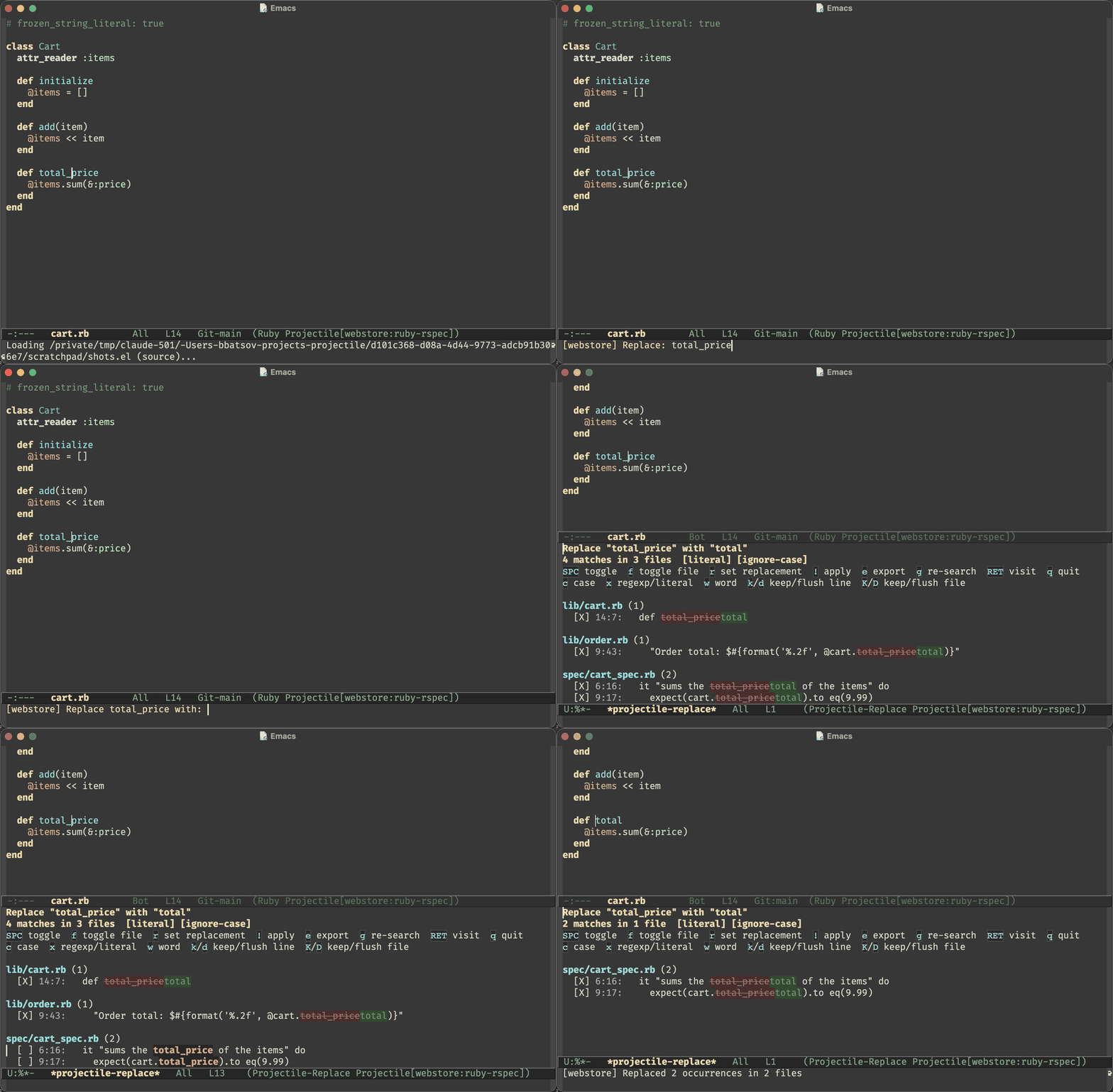
Every match starts enabled (shown as [X]); toggle the ones you don’t want
off ([ ]) and apply only the rest, in any order. The results buffer
supports these keys:
| Key | Action |
|---|---|
RET |
Visit the match under point in another window. |
n / p |
Move to the next / previous match. |
M-n / M-p |
Move to the next / previous file. |
t / SPC |
Toggle whether the match under point will be applied. |
f |
Toggle all matches in the current file at once. |
r |
Re-read the replacement string and refresh the previews. |
c |
Toggle case sensitivity and re-scan. |
x |
Toggle between literal and regexp matching and re-scan. |
k / d |
Keep / flush the matches whose line matches a regexp you type. |
K / D |
Keep / flush the matches whose file matches a regexp you type. |
g |
Re-run the search (also undoes any filtering). |
! (or C-c C-c) |
Apply all enabled matches. |
e |
Export the enabled matches to a |
q |
Quit the results buffer. |
A status line at the top of the buffer shows the term, the replacement, the
match and file counts, the active mode flags ([literal]/[regexp] and
[case-sensitive]/[ignore-case]), and a filtered note once you’ve pruned
the list.
You can reshape the search without leaving the buffer. c toggles case
sensitivity (seeded from case-fold-search) and x toggles literal
versus Emacs-regexp matching, each re-scanning and re-rendering the previews
in place; switching to regexp mode with a term that isn’t a valid regexp is
refused with a message rather than erroring. Because a toggle re-scans from
scratch, it rebuilds the match list and every match comes back enabled, so
any per-match include/exclude toggles you had set are reset (use the filter
keys instead to prune while keeping the survivors' state). The filter keys
narrow the shown matches, either by the match’s line (k keep, d
flush) or by its project-relative file name (K keep, D flush).
Filtering only hides matches from the current list; re-running the search
(g) gathers from scratch and brings them back.
Applying edits a file’s matches from the bottom up so earlier edits don’t
disturb later ones, edits already-open buffers in place under a single undo
step (and saves them), and writes closed files back to disk preserving their
coding system. A buffer that was modified after the search is skipped rather
than risk a bad edit; re-run the search (g) to pick up its current
state. Very large searches are capped at projectile-replace-max-matches.
The project is scanned asynchronously: the *projectile-replace* buffer
opens right away and matches stream in as they are found (the status line
shows a Searching… note with the running count), so a large search never
freezes Emacs. The scan is cancelable with q, C-g, or by killing
the buffer. While it is still running, ! and e refuse until it
finishes, so the write-back never runs against a partial match set; starting a
new scan (g, c, x) first cancels any in-flight one. Set
projectile-replace-async to nil to force the old synchronous single-pass
scan instead; batch (noninteractive) runs always scan synchronously.
! applies the enabled matches with no external dependency. If you’d
rather edit the results as text, e exports the enabled matches (the
same set ! would act on) to a *projectile-grep* buffer in grep-mode,
with standard RELPATH:LINE:CONTEXT lines navigable with next-error and
RET. This is the bridge to wgrep
(C-c C-p to make it editable, then C-c C-c to write back) or
Emacs 31’s grep-edit-mode. wgrep is an optional integration, not a
dependency; after exporting, Projectile tells you which workflow is
available based on what you have installed.
Undoing an applied replace
Applying a replace across a whole project is the most destructive thing
Projectile does, so projectile-replace-undo (s-p u) puts it back.
It reverts exactly the edits ! wrote - files that applying skipped
were never touched and aren’t part of the record.
Undo is deliberately paranoid. Before reverting a file it checks that the text the replace wrote is still there, byte for byte, at the position it was written to. A file that has since been edited, reverted, deleted, or rewritten by a branch switch is reported and left alone; the rest of the files are still reverted. Open buffers are handled the same way applying handles them: the buffer is edited in place rather than the file written behind its back, a clean buffer is saved, and one with unsaved changes of its own is edited but left for you to save.
Only the last applied replace is undoable, it is not per project, and the record lives in memory - restarting Emacs forgets it. Files that were reverted drop out of the record, so undoing twice can never revert anything twice; files that were skipped stay undoable once you’ve sorted out whatever changed under them.
Reviewing search matches
When you want to look through every match for a term across the project without changing anything, the search reviewer is the read-only sibling of the replace reviewer:
-
projectile-search-review(s-p s R) for a literal search. -
projectile-search-regexp-review(s-p s X) for an Emacs regexp search (full Emacs regexp syntax, e.g. symbol boundaries like_<foo\_>).
Both prompt only for the search term (defaulting to the symbol or region at
point) and gather every match into a read-only *projectile-search*
buffer, grouped by file, one LINE:COL: CONTEXT line per match with the
matched span highlighted. There is no replacement, no per-match toggle and
no apply: the buffer never edits your files.
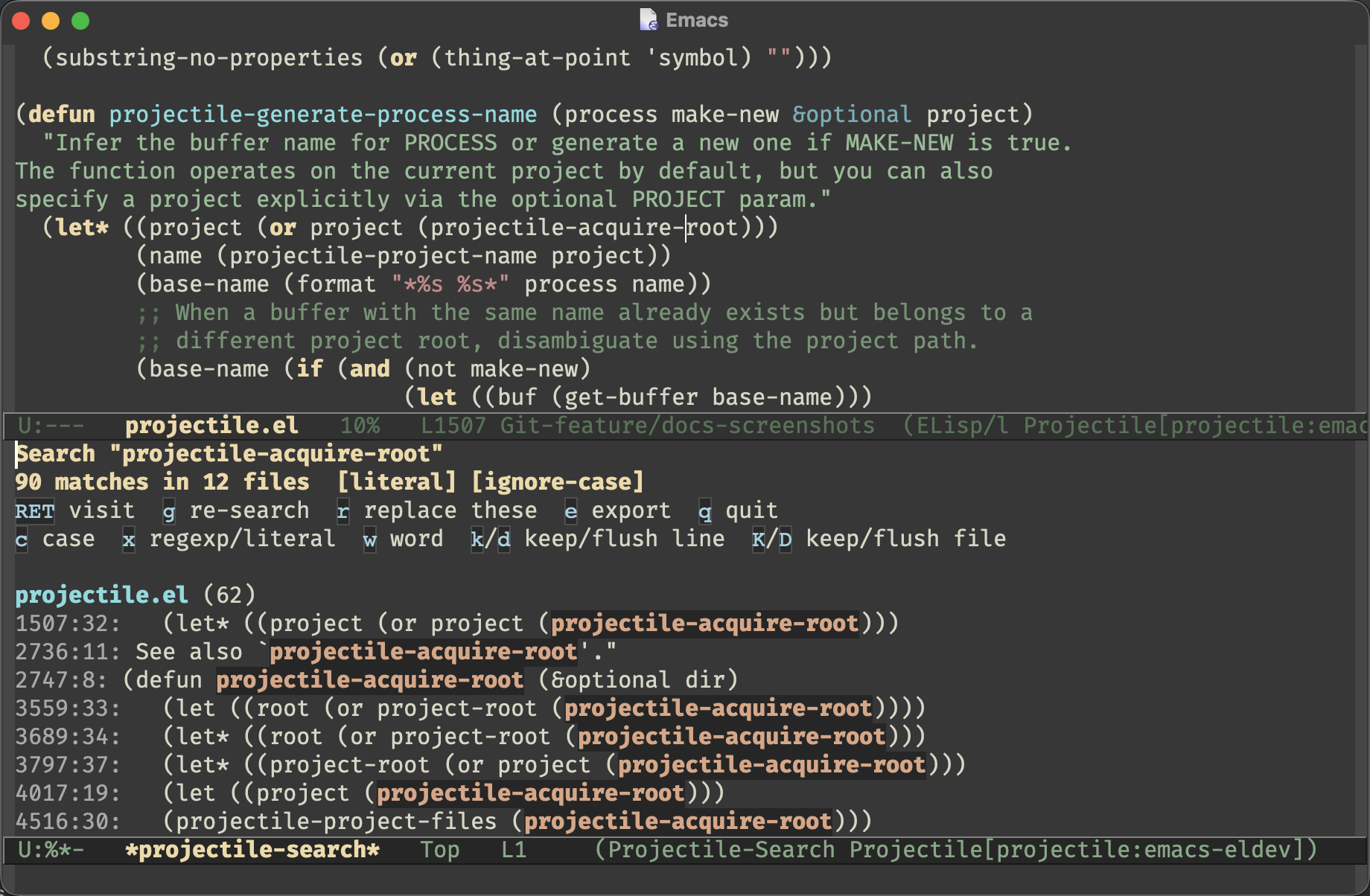
The results buffer supports these keys:
| Key | Action |
|---|---|
RET |
Visit the match under point in another window. |
n / p |
Move to the next / previous match. |
M-n / M-p |
Move to the next / previous file. |
c |
Toggle case sensitivity and re-scan. |
x |
Toggle between literal and regexp matching and re-scan. |
k / d |
Keep / flush the matches whose line matches a regexp you type. |
K / D |
Keep / flush the matches whose file matches a regexp you type. |
g |
Re-run the search (also undoes any filtering). |
r |
Hand the current search to the replace reviewer, prompting only for the replacement. |
e |
Export the shown matches to a |
q |
Quit the results buffer. |
The status line, the case/regexp toggles, the filter keys, the grep export
and the asynchronous, cancelable scanning (including projectile-replace-async)
behave exactly as in the replace reviewer above; only the preview, per-match
toggle and apply are absent. r is the search-to-replace
bridge: it carries over the same term, literal-ness and case setting and
opens the *projectile-replace* reviewer, prompting only for the
replacement. It re-runs the search from scratch, so any filtering you did
in the search buffer is not carried into the replacement. Very large
searches are capped at projectile-replace-max-matches.
When projectile-search-use-ripgrep is non-nil (the default) and the
rg (ripgrep) executable is installed, a literal projectile-search-review
scan runs through ripgrep instead of the pure-Emacs-Lisp scan, which
returns near-instantly even on a large project; the matches stream into
the same read-only buffer and every reviewer command works unchanged. The
ripgrep fast-path follows ripgrep’s own ignore rules (.gitignore,
.ignore, hidden-file handling, and so on) plus Projectile’s ignore globs
(.projectile and the globally-ignored files and directories, passed to
rg via --glob), which can differ slightly from the pure-elisp path’s
file set (for example in how hidden files or symlinks are treated).
Matches in files that aren’t valid UTF-8 are also skipped by the ripgrep
path but found by the elisp path. This
is an accepted trade-off for speed; set projectile-search-use-ripgrep to
nil to force the elisp scan, whose result set matches Projectile’s ignore
configuration exactly. The regexp search command always uses the elisp
scan (ripgrep’s regex syntax is not Emacs regexp syntax), and the whole
replace reviewer always uses the elisp scan (its write-back needs the
exact buffer positions the elisp scan records). The one exception is
projectile-todos below: it builds its own pattern and hands the reviewer
a ripgrep-syntax spelling of it, so it gets the fast-path despite not
being a literal search.
Collecting the project’s TODOs
projectile-todos (s-p s t) gathers every TODO/FIXME-style
annotation in the project into the same read-only *projectile-search*
buffer, so all the keys in the table above apply - navigate them, filter
them down with k/d/K/D, export them to
grep-mode, or hand them to the replace reviewer.
The keywords are projectile-todo-keywords, which defaults to:
(setq projectile-todo-keywords '("TODO" "FIXME" "HACK" "XXX" "BUG" "NOTE"))Add your own conventions to that list (REVIEW, OPTIMIZE, DEPRECATED,
…). With a prefix argument (C-u s-p s t) Projectile prompts for
which of the keywords to search for; several can be given, comma
separated, and you can type in a keyword that isn’t in the list for a
one-off search.
A keyword only counts when it stands as a whole word followed by a colon,
by a space or tab, or by the end of the line - so TODO: and FIXME ` are
found while `TODOS and MASTODON are not. Matching is case-sensitive,
since annotation keywords are uppercase by convention; c in the
results buffer relaxes that. The keyword does not have to sit in a
comment: neither scan parses the language (and the comment syntax would
have to be guessed per file type), so an annotation inside a string or in
prose is reported too - d flushes those you don’t care about.
Project bookmarks
Emacs bookmarks are global, which makes them awkward for project work: a
handful of projects and the list you get from bookmark-jump is a mess.
Projectile adds a project scope on top of the built-in bookmark.el -
that’s all it adds. There’s no separate storage and no separate
persistence: the bookmarks you set are ordinary Emacs bookmarks, they
show up in list-bookmarks and bookmark.el saves them for you.
-
projectile-bookmark-set(s-p B s) - bookmark the current location. The suggested name is the onebookmark-setwould suggest (normally the file name), prefixed with the project’s name, e.g.projectile: projectile.el. Edit it as you please. -
projectile-bookmark-jump(s-p B j) - jump to one of the project’s bookmarks. Only they are offered for completion. -
projectile-bookmark-delete(s-p B d) - delete one of them.
The completion candidates are advertised under the standard bookmark
completion category, so marginalia annotates them and embark acts on
them exactly like on any other bookmark prompt.
The bookmarks live wherever bookmark-default-file points, like
all your other bookmarks. They have nothing to do with
projectile-bookmarks.eld, which is the (unfortunately named) file
Projectile keeps its list of known projects in.
|
Since the suggested name is derived from the file, bookmarking a second spot in the same file and accepting the suggested name again replaces the first bookmark - give the second one a name of its own.
How a bookmark is scoped to a project
There are two ways to tell whether a bookmark is the project’s, and neither is perfect:
-
the bookmark’s recorded file lives under the project root. This survives renaming the bookmark and catches bookmarks you set with plain
bookmark-set(or withorg-capture, or from Dired), but it can’t see bookmarks that record no file at all, like those of Info or Man buffers. -
the bookmark’s name starts with the project’s name followed by a colon and a space, which is how
projectile-bookmark-setnames them. That covers the file-less bookmarks, but it breaks the moment the bookmark (or the project directory) is renamed.
By default Projectile applies both and a bookmark belongs to the project
when either test says so. Set projectile-bookmark-scope to file or
name to use just one of them:
;; only bookmarks whose file is inside the project
(setq projectile-bookmark-scope 'file)
If the file a bookmark points to has been deleted in the meantime,
projectile-bookmark-jump says so and stops, instead of taking you
through the relocation prompt of bookmark.el. Use
projectile-bookmark-delete to get rid of a stale bookmark.
|
Customizing Projectile’s keybindings
It is possible to add additional commands to
projectile-command-map referenced by the prefix key in
projectile-mode-map. You can add multiple keymap prefixes for all
commands. Here’s an example that adds super-, as a command prefix:
(define-key projectile-mode-map (kbd "s-,") 'projectile-command-map)You can also bind the projectile-command-map to any other map you’d
like (including the global keymap).
For some common commands you might want to take a little shortcut and
leverage the fairly unused Super key (by default Command on Mac
keyboards and Windows on Win keyboards).
|
Here’s something you can add to your Emacs config:
(define-key projectile-mode-map [?\s-d] 'projectile-find-dir)
(define-key projectile-mode-map [?\s-p] 'projectile-switch-project)
(define-key projectile-mode-map [?\s-f] 'projectile-find-file)
(define-key projectile-mode-map [?\s-g] 'projectile-grep)
The Super keybindings are not usable in Windows, as Windows
makes heavy use of such keybindings itself. Emacs Prelude already adds those
extra keybindings.
|
Dispatch menu
Projectile ships projectile-dispatch, a transient menu that mirrors
projectile-command-map, for those of you who’d rather pick a command from a
menu than memorize a lot of keybindings. The menu keys match the command map
(e.g. f to find a file, c c to compile, s g to grep). Invoke
it with s-p m.
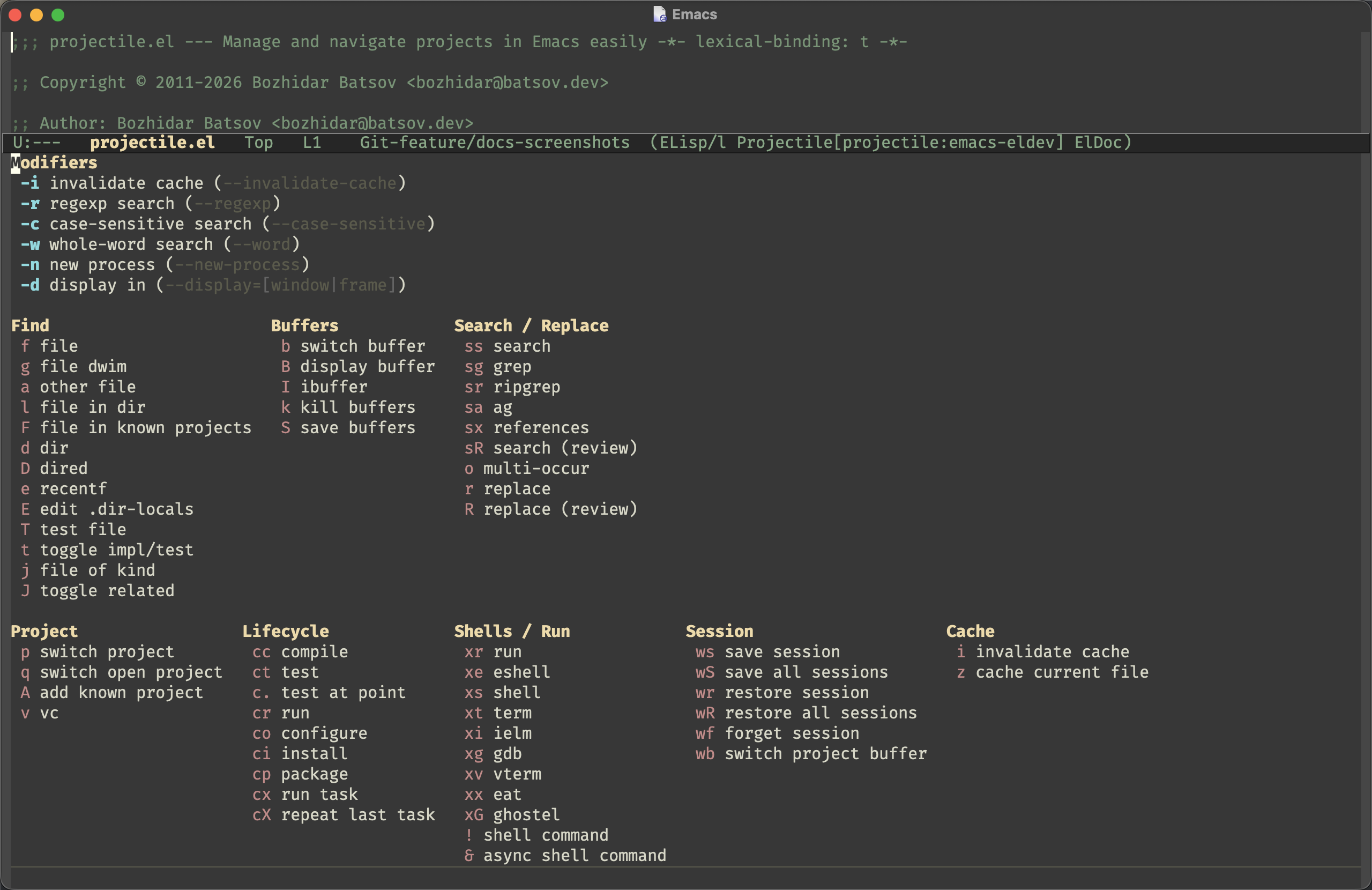
It’s also wired into project switching: press C-u s-p p and Projectile
opens the dispatch menu after you select a project, so you can run any command
in the project you just switched to. (The same happens if you set
projectile-switch-project-action to projectile-dispatch.)
You can bind the command to whatever you like as well:
(define-key projectile-mode-map (kbd "C-c P") #'projectile-dispatch)Modifiers
The menu’s Modifiers group holds switches that tweak how the commands run. Toggle one (or more), then trigger a command:
-
-i invalidate cache - rebuild the file cache first (the find file/dir commands)
-
-r regexp search - treat the search term as a regexp (the
search,ripgrepandagcommands) -
-n new process - start a fresh process instead of reusing one (the shells / REPLs)
-
-d display in - cycle the display target through this window / other window / other frame (the file, buffer and project commands)
For example, toggle -d until it shows frame and then press f to
find a file and show it in a new frame; or press -i then f to
invalidate the cache and find a file. This replaces the old dedicated "other
window" and "other frame" menu columns.
projectile-dispatch is powered by transient, which is bundled with
Emacs 28.1+ (Projectile’s minimum), so the menu is always available. It’s bound
to s-p m, and C-u s-p p opens it when switching projects.
|
Project dashboard
projectile-dashboard (s-p P) opens a buffer that sums up the project
you’re in:
-
the project’s name, root, type and file count
-
the version control system, the current branch and how many files are modified or untracked
-
the project files you visit most, ranked by frecency - the same ranking `projectile-find-file’s completion uses
-
the project’s tasks
-
the lifecycle commands (compile, test, run, …) that are configured for it
Everything worth acting on is a button, so the dashboard doubles as a launcher. RET on a file visits it, on a task or a lifecycle command runs it, on the branch opens the project’s VC interface (Magit, if you have it), and on the root opens it in Dired. TAB moves to the next button, g refreshes and q buries the buffer.
projectile-dashboard-sections picks which sections show up and in what order,
and projectile-dashboard-recent-files how many recent files are listed:
(setq projectile-dashboard-sections '(project vcs recent))
(setq projectile-dashboard-recent-files 20)
The dashboard is deliberately cheap, so that it works as a
projectile-switch-project-action (see
Configuration). It never
indexes the project and never touches the file cache: a project that isn’t
cached yet is reported as "not indexed yet" rather than indexed on the spot.
The branch and status come from two short git commands, and only on a local
git project - on a remote (TRAMP) project, or under any other VCS, the section
says so instead of reaching over the wire. Lifecycle commands and tasks whose
command is a function are listed but not resolved, since resolving one can pop
up a prompt.
Using Projectile with project.el
Starting with version 2.7 Projectile bundles some integration with
project.el that makes project.el use Projectile’s
project lookup function (projectile-project-root) and project file
lookup function (projectile-project-files) whenever projectile-mode
is enabled. You can also enable the integration manually like this:
(add-hook 'project-find-functions #'project-projectile)Beyond root and file lookup, Projectile implements several of project.el’s
backend methods (`project-root, project-files, project-name,
project-buffers, and project-ignores), so commands built on the protocol
(e.g. project-find-regexp) behave correctly for Projectile-managed projects.
| You can read more about the implementation details of the integration here. |
That’s useful as some packages (e.g. eglot) support natively only
project.el's API for project discovery. Fortunately, project.el
makes it easy to install additional project lookup functions and that’s
exactly what Projectile does.
The popular xref package also relies on project.el to infer the project for
helpful commands like xref-find-references (M-?), so it’s useful to teach
it about Projectile’s project discovery logic.
Projectile provides its own alternative to xref-find-references that’s named
projectile-find-references (s-p ? or s-p s x). It’s a backend-agnostic
textual search: it greps the project for the symbol, scoped to the project root and
honouring Projectile’s ignore configuration (.projectile and the globally-ignored
files/directories), just like projectile-grep and friends. Use it when you don’t have
a language server or tags table set up; otherwise xref-find-references gives you
semantic results (and is scoped to the Projectile project too, thanks to the
project.el integration above).
|
You can disable the project.el integration like this:
(remove-hook 'project-find-functions #'project-projectile)